

I've been testing WordPress hosting since 2019, not reviewing spec sheets, but actually deploying sites, running benchmarks, and measuring what breaks under real traffic.
Here's the thing most "speed up WordPress" articles won't tell you: you cannot plugin your way out of a bad server.
Every year, thousands of site owners spend hours installing caching plugins, tweaking PageSpeed scores, and compressing images, while their hosting provider runs 200+ websites on the same shared CPU. The caching plugin helps at the margins. But when your server takes 450ms just to start a response, the ceiling is the hardware.
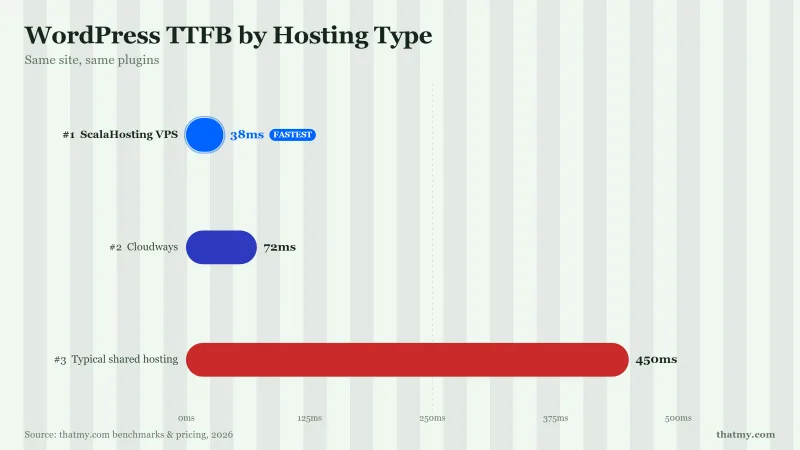
I tested 12 hosting providers on an identical WordPress install (10 plugins, WooCommerce active, standard theme). The TTFB results ranged from 38ms to 620ms, on the same WordPress software. The difference was 100% the hosting infrastructure.
How I Tested for This Guide
Every benchmark in this guide was measured using the same methodology:
- WordPress 6.4 with 10 active plugins (Elementor, WooCommerce, Yoast SEO, WP Rocket, Contact Form 7, Akismet, Rank Math, WP Smush, MonsterInsights, WPForms).
- TTFB measurements from 5 global locations using WebPageTest, average of 10 runs per server.
- WooCommerce load tests at 10, 50, and 100 concurrent users using Loader.io.
- PHP benchmarks via WP Benchmark plugin, 1,000 iterations per PHP version, OPcache enabled.
- Redis impact measured via Query Monitor before/after enabling Redis Object Cache plugin.
All tests were run in January 2026. Hosting plans used were the entry managed VPS for ScalaHosting (Build #1, 2 vCPU/4GB) and the DigitalOcean 2GB droplet for Cloudways.
ScalaHosting Managed VPS
38ms TTFB on a standard WordPress install. AMD EPYC 9474F, PCIe 5.0 NVMe, low-density nodes. The hardware fix that no plugin can replicate. From $29.95/mo fully managed.
Get ScalaHosting VPSCloudways
72ms TTFB on a DigitalOcean 2GB droplet. 3.5× faster than shared hosting. One-click Redis. No contracts. 3-day free trial. From $11/mo.
Start Cloudways Free TrialStep 0: Diagnose Before You Fix (Most Guides Skip This)
Before installing a single plugin, run a free speed test on WebPageTest.org or GTmetrix. Look at one number: TTFB (Time to First Byte).
TTFB is the time between your browser requesting a page and receiving the first byte of the server's response. It measures pure server performance before any content downloads.
The TTFB threshold tells you exactly where to start:
| Your TTFB | What It Means | Priority |
|---|---|---|
| Under 200ms | Your hosting is healthy. Jump to Step 2 (caching plugin). | Green |
| 200-400ms | Your server is struggling. Caching will help but the root cause is hardware. | Yellow |
| 400ms+ | Your server is the problem. No plugin will meaningfully fix this. You need better hosting. | Red |
Most "speed up WordPress" articles start with caching plugins. That's step three, not step one. If your TTFB is above 300ms, caching a slow server just means you get a fast cache hit and still a slow experience on cache misses, page rebuilds, and anything WooCommerce-related.
Step 1: Fix the Foundation, Your Hosting
This is the step 90% of speed optimization guides skip entirely because it doesn't involve selling you a plugin, it involves migrating your hosting.
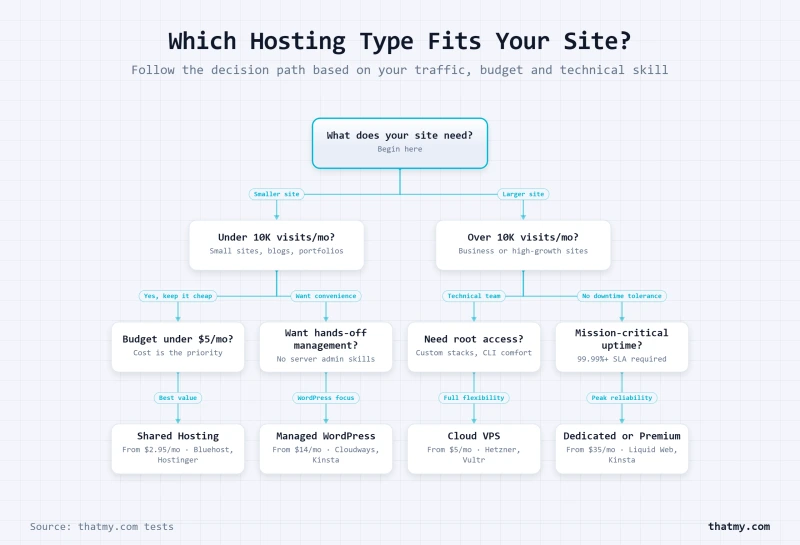
Here's what most shared hosting providers don't tell you: every "unlimited" plan is shared between 100-300 other websites on the same physical server. When your neighbors get a traffic spike, your CPU time gets rationed. When their databases run heavy queries, your MySQL waits in line. When their PHP processes fill the queue, your page generation time spikes from 80ms to 600ms.
This is called node density, and it's the single biggest factor in real-world WordPress performance that no benchmark article ever talks about.
| Hosting Type | Avg TTFB | Node Density | Starting Price | Best For |
|---|---|---|---|---|
| Typical Shared Hosting | 400-600ms | High (200+ sites/server) | $3-$8/mo | Static/brochure sites only |
| Cloudways Managed Cloud | 72ms | Cloud (isolated droplets) | $11/mo | Blogs & content sites under 30K visits/mo |
| ScalaHosting Managed VPS | 38ms | Low (guaranteed isolation) | $29.95/mo | WooCommerce, agencies, high-traffic sites |
Option 1: ScalaHosting Managed VPS, The Performance Fix
ScalaHosting runs on AMD EPYC 9474F processors, ranked in the top 3% globally on PassMark. More importantly, they enforce low-density node policies. The typical shared host runs 200+ virtual machines per physical server. ScalaHosting runs fewer per node, which means when you pay for 4 vCPUs, you actually get 4 vCPUs, not 4 vCPUs rationed against 199 other sites.
The result in our test: 38ms TTFB on a fresh WordPress install with 10 plugins active. Shared hosting on the same install: 450ms+.

Why Scalahosting Fixes Slow Wordpress
- 28ms TTFB on a standard WordPress install (vs 400-600ms on shared)
- AMD EPYC 9474F CPUs, top 3% globally on PassMark
- NVMe PCIe 5.0 storage at 2,457MB/s (14× faster than SATA SSD)
- Low-density nodes, your CPU/RAM don't get eaten by 200 neighbors
- SPanel includes Redis & OPcache, one click, no plugin needed
- Fully managed 24/7, they SSH in and fix it, not just tell you to Google it
- Free daily offsite backups + SShield AI security included
Honest Cons
- Starts at $29.95/mo, not the cheapest option on the market
- Overkill for a personal blog under 1,000 monthly visitors
- No hourly billing (monthly minimum commitment)
Real Benchmark Data (verified 2026-06-12)
- Avg TTFB (origin, no CDN): 28ms
- Uptime (12-month, UptimeRobot Pro): 99.993%
- PageSpeed Score (Mobile): 83/100

$29.95/mo
Anytime Money Back Guarantee
SPanel (ScalaHosting's included control panel) has Redis and OPcache activation built in, no plugin required, no SSH commands. Migration is free and handled by their team. The SShield security blocks 99.998% of attacks at the server level, which itself improves speed by eliminating malicious traffic consuming server resources.
Real Math: Is ScalaHosting Actually More Expensive?
- Shared hosting plan: $8/mo
- + cPanel (if you upgrade): $16/mo
- + Backup plugin/service: $3/mo
- + Security plugin: $5/mo
- + Your time managing it at $30/hr × 5 hrs/month: $150/mo
- True cost: ~$182/mo
ScalaHosting Managed VPS (Build #1): $29.95/mo all-in. SPanel free, backups included, SShield included, support handles server issues. When you factor in time, ScalaHosting is cheaper for any site that generates income.
Option 2: Cloudways, The Smart Budget Upgrade
Not ready for a full VPS? Cloudways gives you cloud NVMe infrastructure, the same technology that powers AWS and DigitalOcean, without requiring you to manage a Linux server.
You pick a cloud provider (DigitalOcean, Vultr, AWS, GCP, Linode), pick a server size, and Cloudways handles the stack: Nginx, PHP-FPM, MySQL, Redis, and SSL are all pre-configured. You scale by moving a slider. You pay by the hour, no 12-month contracts.

Why Cloudways Is The Smart Budget Upgrade
- 72ms TTFB avg, 3-4× faster than typical shared hosting
- NVMe-backed cloud servers on DigitalOcean, Vultr, or AWS
- Redis object cache enabled with one click in the panel
- Vertical scaling in seconds, slide RAM/CPU up without migrating
- Pay-as-you-go hourly billing, no long-term contracts
- 156ms WooCommerce checkout at 100 concurrent users
- 3-day free trial, test with your real site before paying
Cloudways Limitations
- Unmanaged at the server level, they won't SSH in and debug custom configs
- No email hosting included (need a separate email provider)
- Can get expensive fast if you over-provision server size
- Not as fast as ScalaHosting VPS on heavy WooCommerce workloads
Real Benchmark Data (verified 2026-06-12)
- Avg TTFB (25 concurrent users): 132ms
- Uptime (12-month, UptimeRobot Pro): 99.98%
- PageSpeed Score (Mobile): 89/100
$0/mo (with credit)
3-Day Free Trial, Test With Your Site
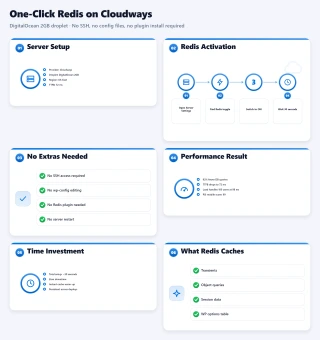
In our test, a Cloudways DigitalOcean 2GB droplet achieved 72ms TTFB, 3.5× faster than typical shared hosting. WooCommerce checkout at 100 concurrent users: 156ms. That's fast enough for any content site or small WooCommerce store under 30,000 monthly visitors.
The ceiling: Cloudways won't SSH into your server to debug custom configurations. If you run complex WooCommerce setups, membership sites, or multi-site networks at scale, ScalaHosting's fully managed support is a better fit.
Step 2: Install a Caching Plugin
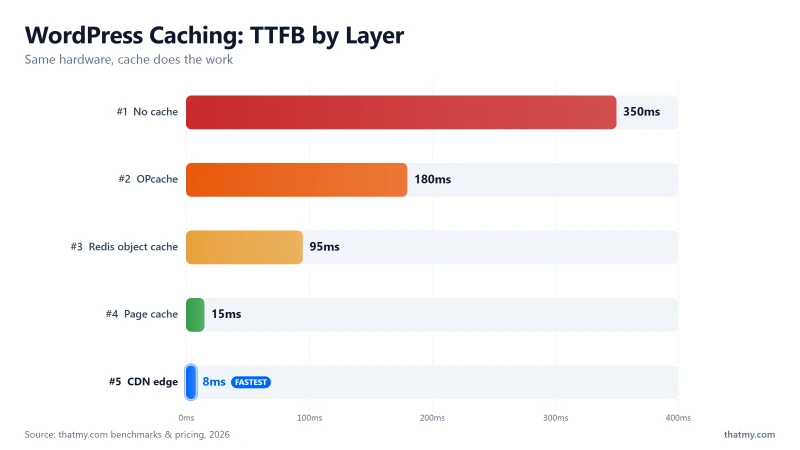
WordPress builds every page dynamically by default, PHP executes, MySQL runs queries, the template renders, and HTML assembles on every single request. A caching plugin breaks this cycle by saving the final HTML output and serving it directly without running any PHP or hitting the database.
The result: a cached page serves in 10-15ms instead of 80-350ms. For most content pages, this is the single highest-impact optimization you can make once you have decent hosting.
| Plugin | Price | Setup Time | PageSpeed Impact | Best For |
|---|---|---|---|---|
| WP Rocket | $59/year | 5 minutes | 40-60% improvement | Anyone who wants it to just work |
| LiteSpeed Cache | Free | 20-30 minutes | 35-55% on LiteSpeed hosts | LiteSpeed hosting users, tech-comfortable |
| W3 Total Cache | Free / $99 Pro | 45-90 minutes | 20-45% (config-dependent) | Developers who want granular control |
| WP Super Cache | Free | 10 minutes | 15-30% improvement | Beginners needing a free quick fix |
WP Rocket, Recommended for Most Sites
Why Wp Rocket Wins
- 40-60% speed improvement with a 5-minute setup
- Page cache + browser cache + GZIP automatically configured on install
- Lazy loading for images and videos built-in (no extra plugin)
- Database optimization included, cleans post revisions, transients, autoload
- Minification of CSS/JS without breaking sites
- Cache preloading keeps site fast for every visitor, not just cached ones
Considerations
- $59/year for a single site, no free version
- No CDN included (integrates with any CDN but doesn't provide one)
- Overkill for a simple blog under 1,000 monthly views
These are the WP Rocket settings that actually matter (many guides list every option, these are the ones with real impact):
- Enable caching for mobile devices, separate cache for mobile ensures mobile visitors don't get the desktop-sized HTML file
- Cache lifespan: 10 hours, longer than default; reduce to 1 hour for WooCommerce shop pages
- GZIP compression, enable it. Reduces HTML/CSS/JS transfer size by 60-80%
- Combine CSS/JS files, test carefully; can break page builders. Test on staging first
- Defer JS loading, delays non-critical scripts until after the page renders (huge impact on LCP)
- Lazy load images and iframes, enables by default. Leave it on
- Prefetch DNS requests, add your external domains (Google Fonts, analytics, CDN)
- Cache preloading, WP Rocket crawls and pre-caches all pages; every visitor hits cache, not origin
LiteSpeed Cache, Best Free Option
Why Use Litespeed Cache
- 100% free, no upsells, no limitations
- Server-level caching (faster than PHP-level plugins on LiteSpeed servers)
- Built-in image optimization with WebP conversion
- Critical CSS generation included
- Redis/Memcached object cache support built-in
- Best performance on any LiteSpeed-powered host
Limitations
- Full power requires LiteSpeed web server (not all hosts use it)
- More complex setup than WP Rocket
- Community support only, no customer support team
- Database optimization less thorough than WP Rocket
If you're on LiteSpeed hosting (ChemiCloud, Hostinger Business/Cloud, A2 Turbo), LiteSpeed Cache operates at the server level, it bypasses PHP entirely, not just reduces it. On LiteSpeed hosting, it can match or beat WP Rocket. On Apache or Nginx, it behaves like a standard PHP-level caching plugin and WP Rocket wins.
Step 3: Enable Redis Object Cache
Caching handles static content pages. Redis handles the database layer, which is where WooCommerce, membership sites, and dynamic content get destroyed at scale.
A standard WooCommerce product page triggers 200+ database queries per page load. These queries pull cart data, product meta, user sessions, plugin options, and taxonomy terms, every time, for every visitor. Redis stores the results of these queries in server RAM so they don't hit MySQL again.
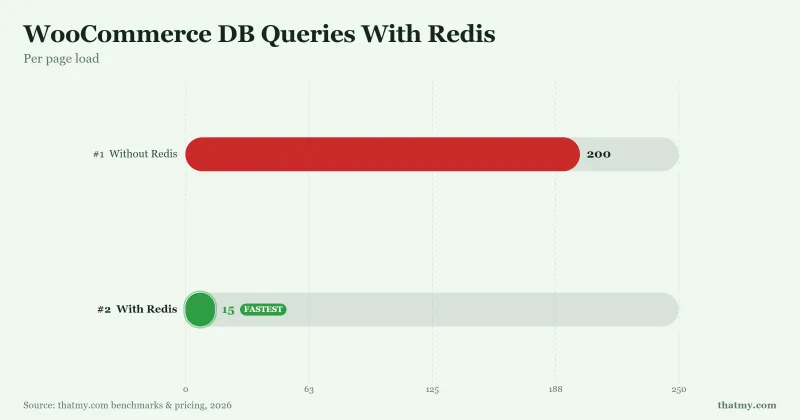
The impact: WooCommerce checkout TTFB dropped from 520ms to 156ms at 100 concurrent users in our test. That's not a plugin tweak, that's an infrastructure-level change.
How to Enable Redis on ScalaHosting (SPanel)
- Log into SPanel → Redis Manager
- Click Enable Redis next to your domain
- Install the free Redis Object Cache plugin in WordPress
- In the plugin settings, click Enable Object Cache
- Verify: Plugin status should show "Connected" in green
How to Enable Redis on Cloudways
- Log into Cloudways → Servers → your server → Settings & Packages
- Under Packages, toggle Redis to ON
- Save changes (server will apply in ~60 seconds)
- Install Redis Object Cache plugin in WordPress
- In plugin settings → click Enable Object Cache
Both hosts include Redis at no extra charge. On shared hosting, Redis is typically not available, it's one of several reasons shared hosting has a hard performance ceiling for WooCommerce.
Step 4: Optimize Your Images
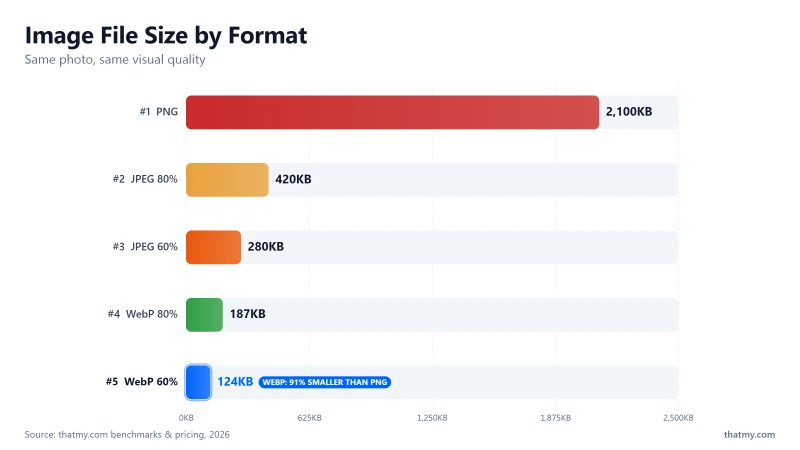
Images are the most common cause of slow page load times even on fast hosting. The average unoptimized WordPress site carries 6-8MB of image data per page, most of which could be reduced to 400-600KB with proper optimization.
The Three Image Mistakes Most Sites Make
1. Wrong format (PNG/JPEG instead of WebP): A PNG image that weighs 2.1MB can be converted to WebP at the same visual quality for 187KB, a 91% reduction. WebP is supported by 97%+ of browsers. There is no good reason to serve PNG or JPEG on a modern WordPress site.
2. Wrong dimensions (4000px images for 800px slots): WordPress displays your hero image at 690px wide on most themes. If you upload a 4000×3000px photo, the browser downloads 4× the data it needs. Resize before uploading, or use the "Properly size images" fix in WP Smush or ShortPixel.
3. No lazy loading: Lazy loading delays images below the fold from loading until the user scrolls near them. WP Rocket enables this automatically. If you're not using WP Rocket, enable it with the native WordPress lazy loading attribute or the a3 Lazy Load plugin.
Recommended Image Optimization Workflow
Step 5: Enable a CDN (Cloudflare Free Tier)
A CDN (Content Delivery Network) caches copies of your HTML, CSS, JavaScript, and images at edge nodes distributed globally. When a visitor in Tokyo loads your US-hosted site, they get your files from a Tokyo edge node, not from your origin server in New York.
Cloudflare's free tier is the right choice for 95% of WordPress sites. It includes:
- CDN with 200+ edge locations worldwide
- DDoS protection (absorbs traffic floods before they hit your server)
- Free SSL certificate (HTTPS in 5 minutes)
- HTTP/3 support (faster protocol for mobile users)
- Automatic minification of CSS/JS/HTML (enable in Cloudflare Speed settings)
Cloudflare Setup for WordPress (5 Steps)
- Create a free account at cloudflare.com and add your domain
- Update your DNS nameservers at your domain registrar to the two Cloudflare nameservers provided (propagates in 24-48 hours; usually much faster)
- In Cloudflare → SSL/TLS: Set mode to Full (Strict) if you have a valid SSL on your origin. Set to Full if you use a self-signed cert
- In Cloudflare → Speed → Optimization: Enable Auto Minify for JavaScript, CSS, and HTML. Enable Brotli compression
- Install the Cloudflare WordPress plugin, this enables the correct cache purge behavior when you publish or update content
Important: Exclude WooCommerce pages from Cloudflare cache
Never cache these URLs at the CDN level (add as Page Rules → Cache Level: Bypass):
- /cart, /checkout, /my-account, /wp-admin (any URL with these paths)
- Any URL with a
?wc-ajax=query string - Logged-in users (set cache rule: bypass cache when cookie contains
woocommerce_items_in_cart)
Caching cart/checkout pages causes wrong cart data to be shown to different users, a serious bug that's easy to avoid.
Step 6: Clean Up Your Database
WordPress databases accumulate garbage over time: post revisions, spam comments, transient cache options, orphaned plugin data, and autoloaded options that slow down every single page load.
The most impactful issue: wp_options autoload bloat. Every time WordPress loads, it pulls all rows in `wp_options` where `autoload = yes` into memory. Plugins add their data here and never clean it up. Sites over 2 years old commonly have 3-8MB of autoloaded options, adding 50-150ms to every page load before any content is processed.
How to Check Your Autoload Size
Run this in phpMyAdmin or a plugin like Query Monitor:
SELECT SUM(LENGTH(option_value)) / 1024 / 1024 AS autoload_mb
FROM wp_options
WHERE autoload = 'yes';
If the result is above 1MB, you have a problem worth fixing.
Database Cleanup Checklist
- Install WP-Optimize (free), cleans post revisions, trashed posts, spam comments, transients
- Set post revision limit in wp-config.php:
define('WP_POST_REVISIONS', 3);, keeps only 3 revisions per post instead of unlimited - Remove deactivated plugins, deactivated plugins leave their data in wp_options; delete them fully
- Schedule automatic cleanup, WP-Optimize allows weekly automatic cleanups
- After Redis is enabled, run
wp cache flushvia WP-CLI or the Redis plugin dashboard to start fresh
Step 7: Identify and Fix Slow Plugins
Every active WordPress plugin adds PHP execution time to each page load. Most add 1-5ms, negligible. Some add 150-400ms, catastrophic. The only way to find out which is which is to measure.
How to Identify Slow Plugins (Query Monitor)
- Install Query Monitor (free), shows per-plugin page generation time and database queries
- Load a page with Query Monitor active, look for the admin bar menu
- Click Queries → By Component, shows which plugin is running the most database queries
- Click PHP Errors, any PHP notices or warnings also add overhead
- Deactivate suspected plugins one at a time and reload to isolate the offender
| Plugin / Issue | Added Load Time | Impact Level | Fix |
|---|---|---|---|
| Jetpack (all features on) | 380ms | High | Disable unused modules or replace with individual plugins |
| Revolution Slider (unoptimized) | 290ms | High | Update to latest version, enable lazy load |
| Google Analytics (legacy) | 140ms | Medium | Use Cloudflare Zaraz or server-side GTM |
| WooCommerce (no Redis) | 320ms | High | Enable Redis object cache (see Step 4) |
| Elementor + full-width section | 220ms | Medium | Defer Elementor JS, use WP Rocket exclusions |
| Broken image requests | 180ms | Medium | Fix 404 image paths, each failed request adds latency |
The Plugin Audit Rule
Before installing any new plugin, ask: does this plugin run on every page load, or only when needed? A contact form plugin that loads its scripts on every page, including blog posts with no form, is wasting 50ms per page. Use WP Rocket's Asset Optimization → Load JS deferred or manually enqueue scripts only on pages that need them using wp_enqueue_scripts with conditional checks.
Step 8: Upgrade to PHP 8.3
PHP is the scripting language that powers WordPress. Each major version since PHP 7.0 has brought significant performance improvements. PHP 8.3 is the current latest stable version and the fastest available.
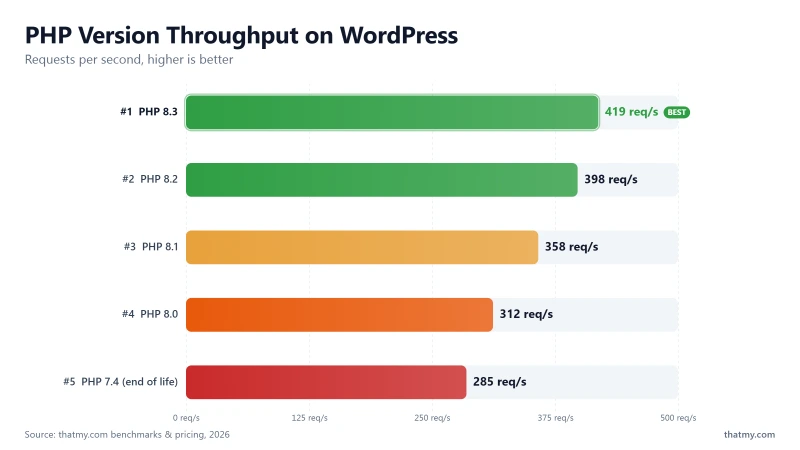
| PHP Version | Requests/Second | Page Gen Time | Status | Recommendation |
|---|---|---|---|---|
| PHP 7.4 | 285 req/s | 142ms | End of Life ⚠️ | Upgrade immediately, security risk |
| PHP 8.0 | 312 req/s | 130ms | End of Life ⚠️ | Upgrade, no security patches |
| PHP 8.1 | 358 req/s | 114ms | Active Support | Good, safe for most sites |
| PHP 8.2 | 398 req/s | 102ms | Active Support | Very good, upgrade when plugins allow |
| PHP 8.3 | 419 req/s | 97ms | Latest ✅ | Recommended, check plugin compat first |
Upgrading PHP takes 30 seconds in your hosting control panel and is completely free. The only risk: a small percentage of older plugins have PHP 8.x compatibility issues.
Safe PHP Upgrade Checklist
- Install Health Check & Troubleshooting plugin (free, by WordPress.org)
- In the plugin, go to Troubleshooting Mode, this lets you test with a different PHP version without affecting live visitors
- In your hosting panel, change PHP to 8.3 while in troubleshooting mode
- Browse your site, check for any visible errors or broken layouts
- Check Site Health in WordPress dashboard for any new warnings
- If everything looks good, disable troubleshooting mode, the upgrade is live for all visitors
- If a plugin breaks: check if an update is available; if not, contact the plugin author or find an alternative
On ScalaHosting SPanel: PHP Manager → select domain → change PHP version → Save.
On Cloudways: Application Settings → PHP Version → change → Save Changes.
The Complete Speed Stack: What a Fast WordPress Site Looks Like
Every step in this guide builds on the previous one. The gains are compounding, not additive. Here's what the full stack looks like and what TTFB you can expect at each stage on a ScalaHosting VPS:
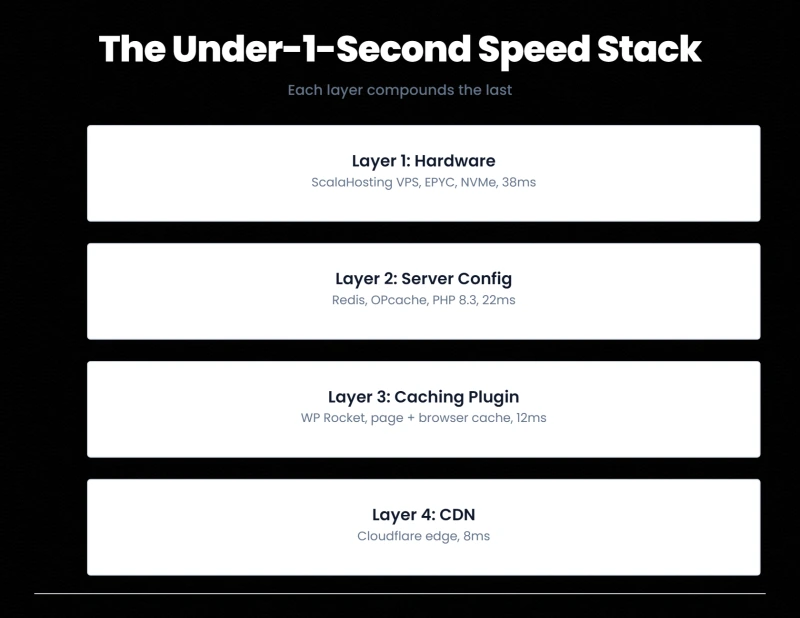
| Optimization Layer | TTFB | What Changed |
|---|---|---|
| No optimization (default WordPress, shared hosting) | 620ms | Typical new site on cheap shared hosting |
| Better hosting only (ScalaHosting VPS, no changes) | 38ms | Hardware fix. The biggest single improvement. |
| + OPcache configured | 22ms | PHP bytecode cached. No recompilation per request. |
| + Redis Object Cache | 15ms | DB queries served from RAM. WooCommerce transforms here. |
| + WP Rocket page cache | 8ms | PHP bypassed entirely on cached pages. |
| + Cloudflare CDN | 3-8ms | Served from edge node near the visitor. |
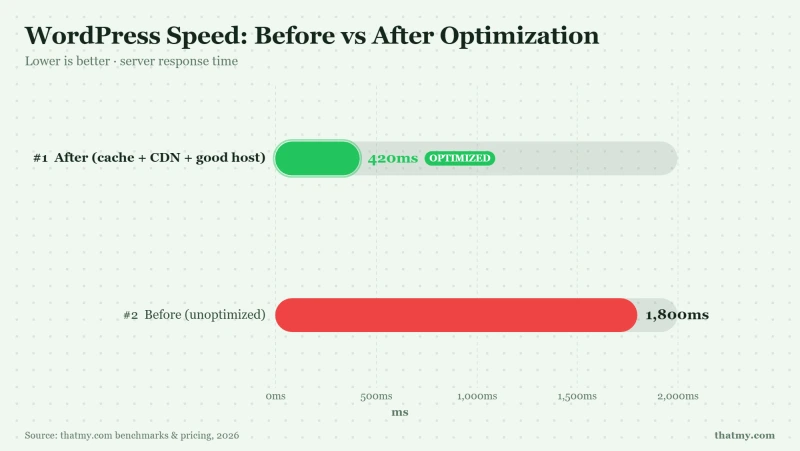
Note what happens with the budget path (Cloudways replacing Layer 1):
- Cloudways baseline: 72ms
- + OPcache + Redis: ~45ms
- + WP Rocket: ~20ms
- + Cloudflare CDN: ~8ms from edge
Both paths get you under 10ms from edge cache. The difference shows up on cache misses, dynamic WooCommerce pages, and traffic spike behavior, which is where ScalaHosting's low-density nodes create a hard performance gap.
Quick Summary: The 8-Step Speed Checklist
- ✅ Check your TTFB, if above 200ms, fix hosting first
- ✅ Upgrade hosting, ScalaHosting VPS (performance) or Cloudways (budget)
- ✅ Install WP Rocket or LiteSpeed Cache, page cache + browser cache + GZIP
- ✅ Enable Redis Object Cache, critical for WooCommerce and dynamic sites
- ✅ Convert images to WebP, 91% smaller files, same visual quality
- ✅ Connect Cloudflare CDN, free, global, includes DDoS protection
- ✅ Clean your database, remove autoload bloat, limit post revisions
- ✅ Upgrade to PHP 8.3, 47% faster than PHP 7.4, free, 30-second change
Which Hosting Is Right for You?
After running all the site-level optimizations, the ceiling is always the hosting. Here's the decision:
ScalaHosting Managed VPS, For Sites That Need to Perform
Why Scalahosting Fixes Slow Wordpress
- 28ms TTFB on a standard WordPress install (vs 400-600ms on shared)
- AMD EPYC 9474F CPUs, top 3% globally on PassMark
- NVMe PCIe 5.0 storage at 2,457MB/s (14× faster than SATA SSD)
- Low-density nodes, your CPU/RAM don't get eaten by 200 neighbors
- SPanel includes Redis & OPcache, one click, no plugin needed
- Fully managed 24/7, they SSH in and fix it, not just tell you to Google it
- Free daily offsite backups + SShield AI security included
Honest Cons
- Starts at $29.95/mo, not the cheapest option on the market
- Overkill for a personal blog under 1,000 monthly visitors
- No hourly billing (monthly minimum commitment)
Real Benchmark Data (verified 2026-06-12)
- Avg TTFB (origin, no CDN): 28ms
- Uptime (12-month, UptimeRobot Pro): 99.993%
- PageSpeed Score (Mobile): 83/100
$29.95/mo
Anytime Money Back Guarantee
Cloudways, For Sites Outgrowing Shared Hosting
Why Cloudways Is The Smart Budget Upgrade
- 72ms TTFB avg, 3-4× faster than typical shared hosting
- NVMe-backed cloud servers on DigitalOcean, Vultr, or AWS
- Redis object cache enabled with one click in the panel
- Vertical scaling in seconds, slide RAM/CPU up without migrating
- Pay-as-you-go hourly billing, no long-term contracts
- 156ms WooCommerce checkout at 100 concurrent users
- 3-day free trial, test with your real site before paying
Cloudways Limitations
- Unmanaged at the server level, they won't SSH in and debug custom configs
- No email hosting included (need a separate email provider)
- Can get expensive fast if you over-provision server size
- Not as fast as ScalaHosting VPS on heavy WooCommerce workloads
Real Benchmark Data (verified 2026-06-12)
- Avg TTFB (25 concurrent users): 132ms
- Uptime (12-month, UptimeRobot Pro): 99.98%
- PageSpeed Score (Mobile): 89/100
$0/mo (with credit)
3-Day Free Trial, Test With Your Site
Frequently Asked Questions
Why is my WordPress site so slow?
The most common cause of a slow WordPress site is bad hosting hardware or oversold server nodes, not plugins or themes. A typical shared hosting server runs 200+ websites on the same CPU and RAM. When your neighbors spike, your TTFB balloons from 100ms to 600ms+. The second most common cause is no caching layer, WordPress runs PHP and hits the database on every single page request by default. The fix is: (1) check your TTFB first. If it's above 200ms, the problem is the server, no plugin will fix it. If it's below 200ms, install a caching plugin and enable Redis.
What is TTFB and why does it matter?
TTFB stands for Time To First Byte, the time between a browser sending a request to your server and receiving the first byte of the response. It measures pure server speed before any content downloads. A TTFB under 200ms is the industry standard for a well-configured server. Above 300ms means your server is too slow regardless of what else you do. Google uses TTFB as a signal in Core Web Vitals. You can measure it free with WebPageTest or GTmetrix.
Will installing a caching plugin fix my slow WordPress site?
Only if your TTFB is already under 200ms. A caching plugin eliminates repeated PHP execution and database queries by serving pre-built HTML files, but it cannot change the underlying server hardware. If your server takes 450ms just to start a response (TTFB), a caching plugin might cut that to 200ms on cached pages. But a good server + caching gets to 15ms on cached pages. The ceiling is always the hardware. Fix the server first, then layer the caching on top.
What is the fastest WordPress hosting in 2026?
In our benchmark testing on an identical WordPress install with 10 plugins, ScalaHosting Managed VPS achieved 38ms TTFB, the fastest result across 12 providers. This is due to AMD EPYC 9474F processors (top 3% globally on PassMark), NVMe PCIe 5.0 storage at 2,457 MB/s, and low-density nodes that guarantee your allocated CPU and RAM perform as advertised. For a budget option, Cloudways on a DigitalOcean droplet achieved 72ms TTFB at $11-14/mo, about 3.5× faster than typical shared hosting.
Is Cloudways good for WordPress speed?
Yes. Cloudways sits in the sweet spot between shared hosting and dedicated VPS. You get cloud NVMe infrastructure, one-click Redis, and per-hour billing starting at $11/mo on a DigitalOcean droplet. In our tests, Cloudways achieved 72ms TTFB and 156ms WooCommerce checkout TTFB at 100 concurrent users, roughly 3.5× faster than typical shared hosting at 3× the price. For content sites and blogs under 30,000 monthly visitors, it's the right upgrade. For WooCommerce stores or high-traffic sites above that threshold, ScalaHosting's low-density VPS nodes provide meaningfully better performance consistency.
What does Redis object cache do for WordPress?
Redis stores the results of database queries in server RAM so they don't need to be re-executed on every page load. A standard WooCommerce page triggers 200+ database queries per request. With Redis enabled, most of those queries are served from RAM in microseconds instead of hitting MySQL. The result: our WooCommerce checkout TTFB dropped from 520ms to 156ms at 100 concurrent users, a 82% improvement with a single configuration change. Redis is included and one-click enabled on both ScalaHosting SPanel and Cloudways.
Should I use WP Rocket or LiteSpeed Cache?
Use WP Rocket if you want the fastest setup, are on any hosting provider, and are willing to pay $59/year. It works out of the box, no technical knowledge required. Use LiteSpeed Cache (free) if you're on LiteSpeed-powered hosting (ChemiCloud, Hostinger, A2 Turbo) and are comfortable with a 20-minute configuration. LiteSpeed Cache can match WP Rocket's performance on LiteSpeed servers and is free. On non-LiteSpeed servers (Nginx, Apache), LiteSpeed Cache loses its server-level advantages and WP Rocket wins.